Home Page
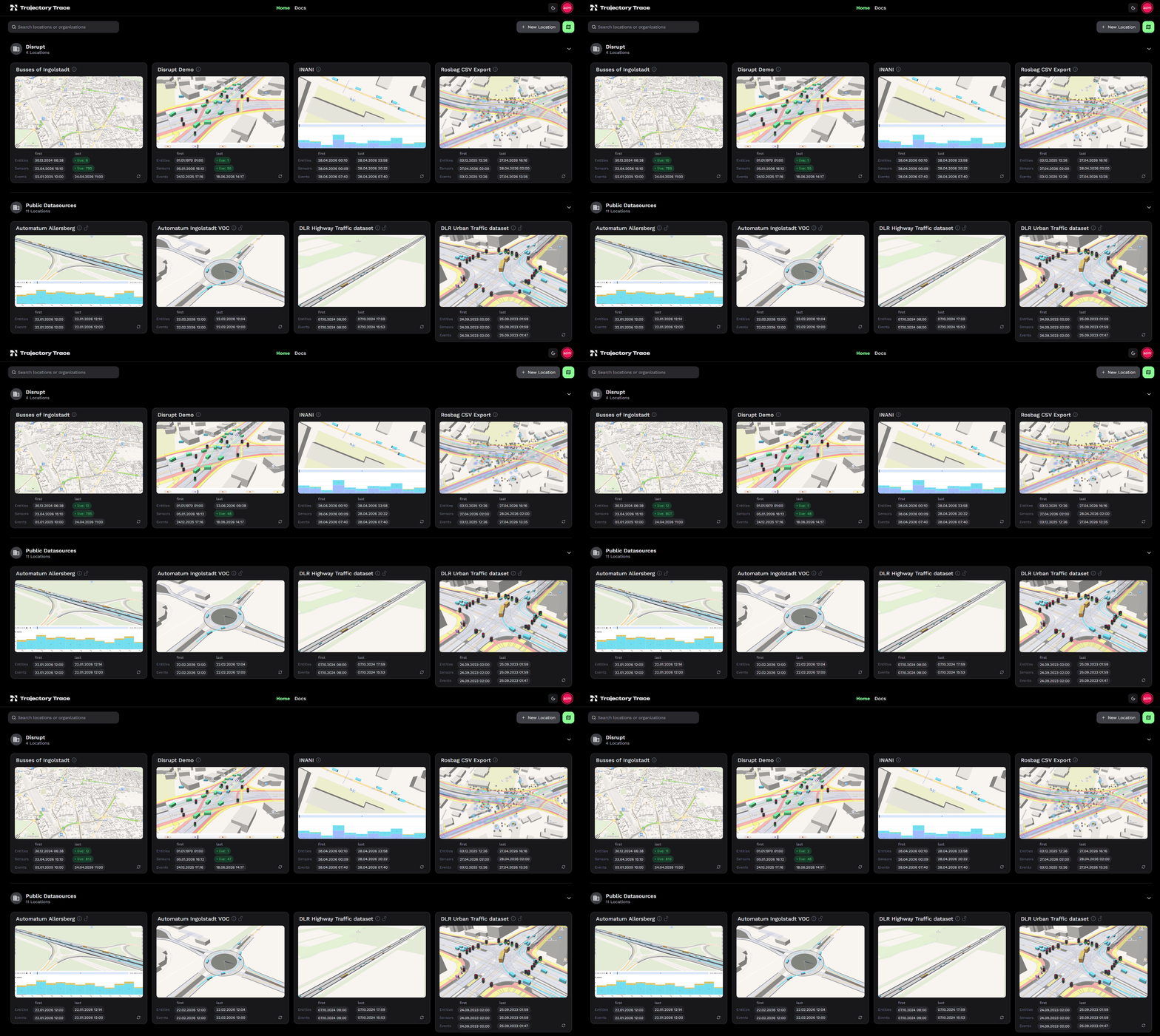
By default, Home shows the overview of all locations that are available.
Map View
Clicking the Show Map button in the top right corner switches from the card grid to a map overview. All locations are shown as markers on the map. Clicking a marker opens the location. Click Show Dashboard to return to the card grid.
Login and New Lcoations
The top right corner also shows your login status:
- Not logged in only public locations are visible. Click the
Sign Inicon to log in. - Logged in: your user name is displayed. You have access to all locations you have been granted permission for.
Once logged in, a New Location button appears. Clicking it opens a dialog to create a new location with a name and description. The new location will be listed on the Home page immediately after creation. See New Source for more information.
Location Diagnostics
Each location card shows the timestamps of the first and last data for each data type, if available:
| Row | What is counted |
|---|---|
| Entities | Traffic objects (vehicles, cyclists, pedestrians) |
| Sensors | Traffic lights, detector loops, weather masts |
| Events | Accidents, dangerous conditions, other events |
Clicking a timestamp navigates directly to that time range in the location view.
The timestamps are refreshed periodically and automatically adjust their update frequency based on how recently a location was active.
Live indicator
When live data is arriving, the last column shows a green • live chip instead of a static timestamp. The displayed count differs per data type because each uses a different active window:
- Entities — unique objects seen in the last 500 ms
- Sensors — sensors that reported in the last 2 minutes
- Events — events received in the last 5 minutes