Verkehrsdaten-management der nächsten Generation
Trajectory Trace befähigt Sie, Herausforderungen der Mobilität durch innovative Technologie und Echtzeit-Verkehrsanalysen zu bewältigen.
Schnell, Effizient, Skalierbar
Trajectory Trace ist die Lösung, um Ihre Verkehrsdaten einfach und dauerhaft verlustfrei zu sichern und für Visualisierung und Analyse verfügbar zu machen.
Probleme im Verkehrsdatenmanagement
Anforderungen an effiziente Speicherung, schnellen Datenzugriff, klare Visualisierung und tiefgehende Analyse überfordern bestehende oder selbst entwickelte Lösungen - insbesondere bei der nahtlosen Integration von historischen und Echtzeit-Daten.
Investition in Infrastruktur und Entwicklung
Integration heterogener Sensoren
Gewährleistung Datenschutz und Sicherheit
Trajectory Trace funktioniert
Unsere Datenplattform hilft Ihnen (Verkehrsforschern/-planern, Flottenmanagern, Betreibern kritischer Infrastruktur, ...), komplexe Mobilitätsherausforderungen zu meistern. Alle essenziellen Funktionen stehen bereit:

Speichern von Massendaten
Speichern Sie Verkehrsdaten mit intelligenter Kompression und strukturierten Datenbanken, die hochperformanten Zugriff und dauerhafte Erhaltung aller Rohdaten gewährleisten.
Nahtlose Visualisierung
Visualisieren Sie Live-Streaming und historische Verkehrsdaten mit freier 3D-Kartennavigation für detaillierte und Übersichtsbeobachtung.
Heterogene Datenquellen
Integrieren Sie Daten von Kameras, Drohnen, Sensoren und Signalsystemen in eine einheitliche Plattform für umfassendes Verkehrsmonitoring.
Event Manager
Erfassen und markieren Sie kritische Momente für tiefere Analysen und historische Mustererkennung.
Szenario-Erkennung
Identifizieren Sie Muster und potenzielle Probleme in Echtzeit mit KI-gestützter oder regelbasierter Erkennung und sofortigen Alarmen.
Verkehrsanalyse
Erstellen Sie tiefgehende Analysen einschließlich Histogrammen, Heatmaps und Trajektorien-Clustering zur Bewertung des Verkehrsverhaltens nach Zeit, Raum und Verkehrsmittel.
Detail Karten
Laden Sie benutzerdefinierte Karten mit individuellen Visualisierungseinstellungen für Fahrspuranalyse und Verkehrsflussoptimierung hoch.
Datenschutz
Sichere Zugangskontrolle mit rollenbasierten Berechtigungen für zuverlässige Benutzerautorisierung und Datenschutz.
GraphQL API
Leistungsstarke GraphQL API für flexible Datenabfragen, nahtlose Integrationen und benutzerdefinierte Analyse-Workflows.
Erleben Sie die Möglichkeiten von Trajectory Trace
Halten Sie die Strg-Taste gedrückt, um den 3D-Betrachtungswinkel zu ändern. Verwenden Sie das Mausrad zum Zoomen. Klicken Sie auf Objekte, um weitere Informationen anzuzeigen. Klicken Sie auf die Schalter links zum Filtern nach Klasse und rechts zum Ändern der Anzeigeoptionen.
Realisieren Sie Ihre Mobilitätsanwendung
Trajectory Trace kann zur Bewältigung verschiedener Anwendungsfälle im Bereich Verkehrsdatenmanagement und intelligente Mobilität eingesetzt werden. Mögliche Beispiele umfassen:
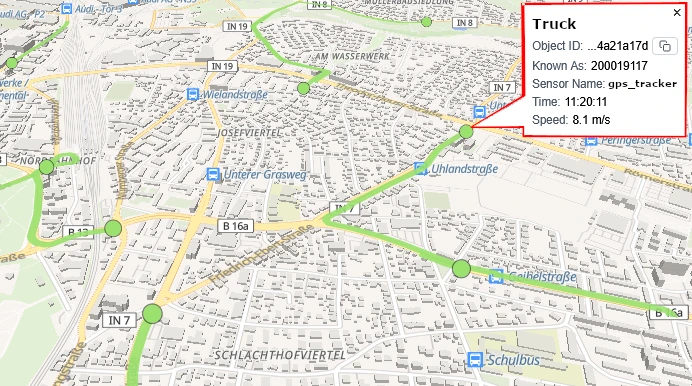
Flottentracking und -management
Verfolgen Sie Nutzfahrzeugflotten in Echtzeit und optimieren Sie Routenplanung und Effizienz durch Analyse historischer Daten.
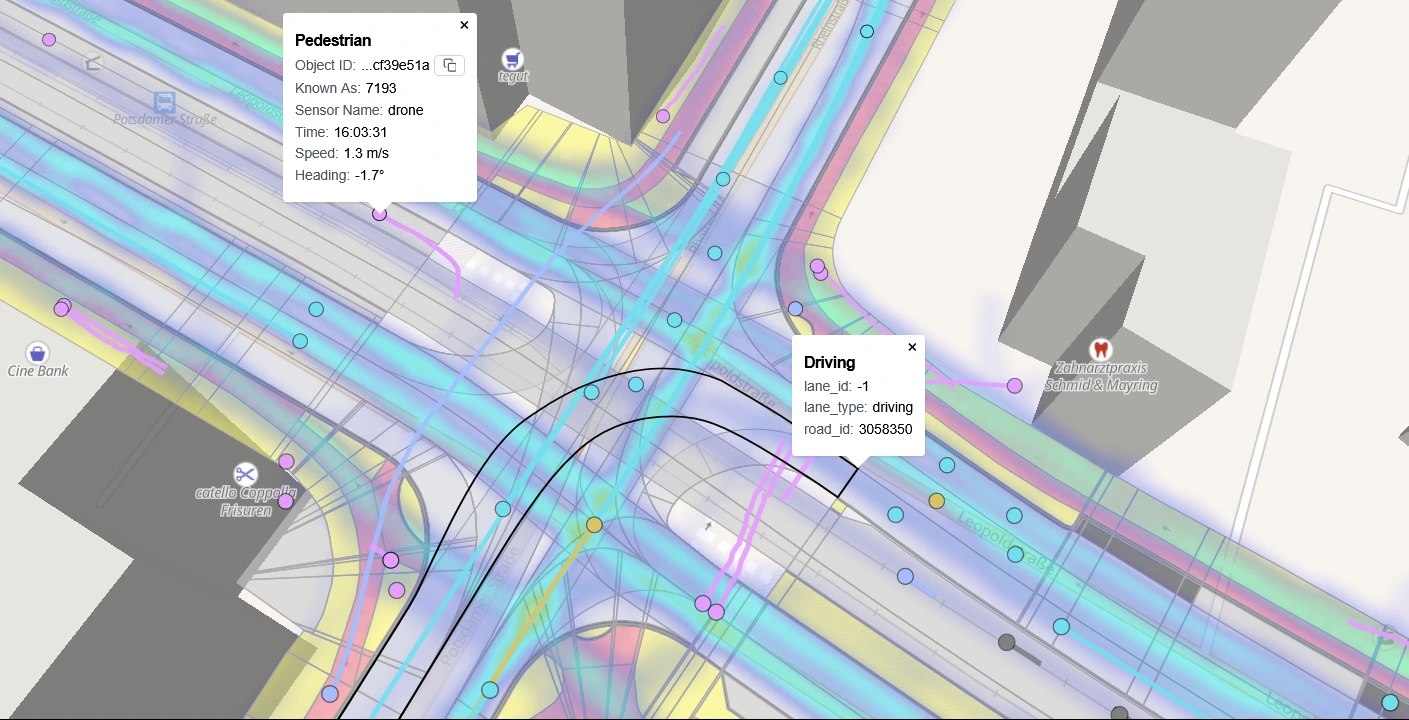
Verkehrsforschung
Analysieren Sie Verkehrsfluss, Mobilitätsverhalten und kritische Situationen zur Erhaltung und Verbesserung der Sicherheit und Effizienz des Verkehrssystems.
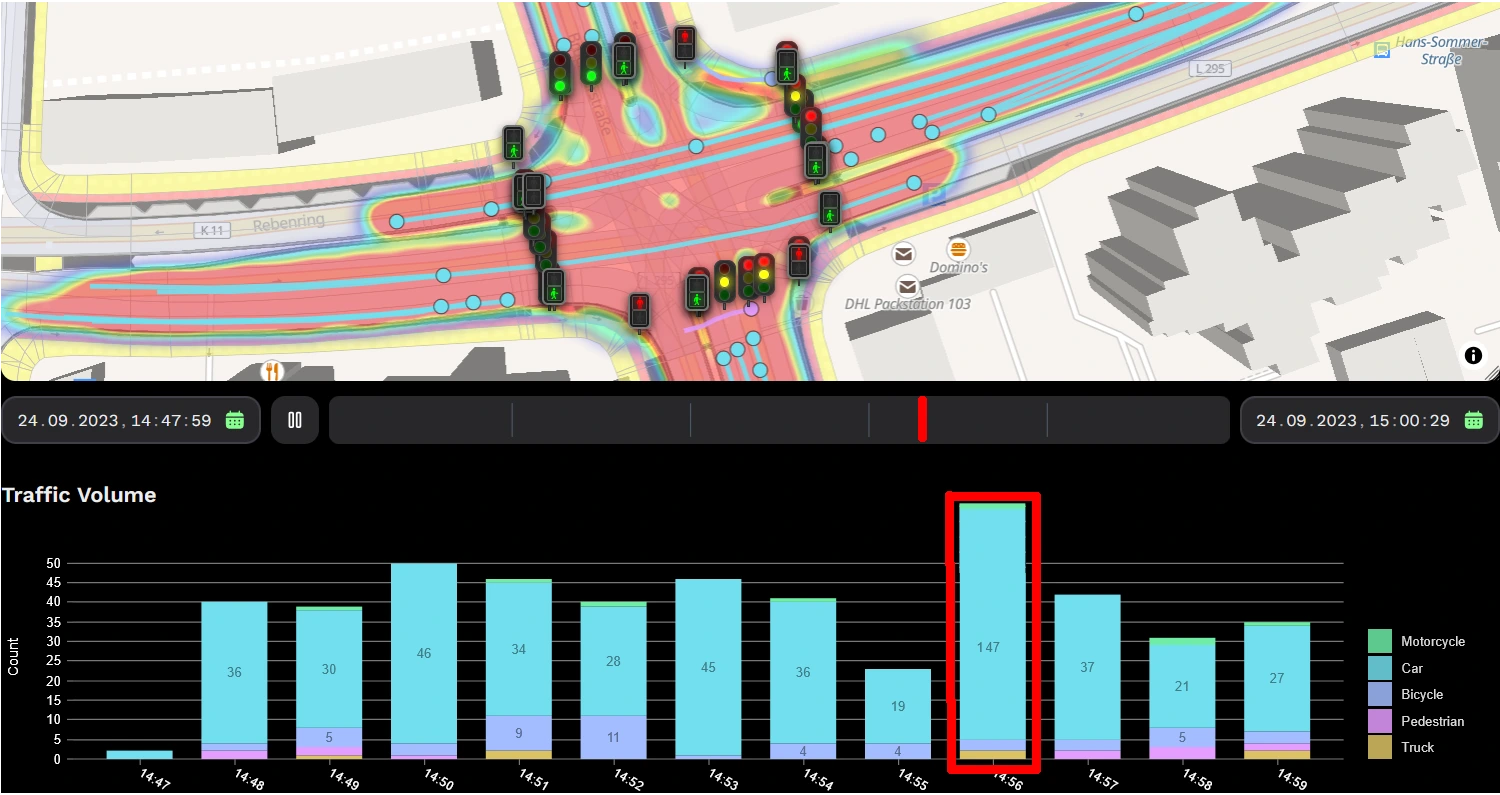
Verkehrs- / Sicherheitsleitzentrale
Überwachen Sie Verkehrsbedingungen oder sicherheitsrelevante Informationen mit Echtzeit-Daten und Ereignismeldungen zur Verbesserung der urbanen Mobilität.